
1. Product Introduction
2. Supported System Languages
3. Launch TECNO AI
4. Homepage
5. AI Meeting (On-Device Model)
6. AI Gallery (On-Device Model)
7. Local Knowledge Base
8. Ella
9. AI PPT
10. Settings
11. Q&A
AI Meeting
AI Gallery
Local Knowledge Base
Ella
AI PPT
Deepseek
•Chinese system: Supports mutual translation between Chinese and English.
•English system: Supports mutual translation between Chinese and English.
•Russian system: Supports mutual translation between English and Russian.
Tips: For optimal performance, connect to a power source during use.
•Supports text input for on-device model Q&A, local translation, and Deepseek model Q&A.
•Supports voice input for on-device model Q&A, local translation, and Deepseek model Q&A.
Tips: Deepseek is only supported on MEGABOOK S14/S16.
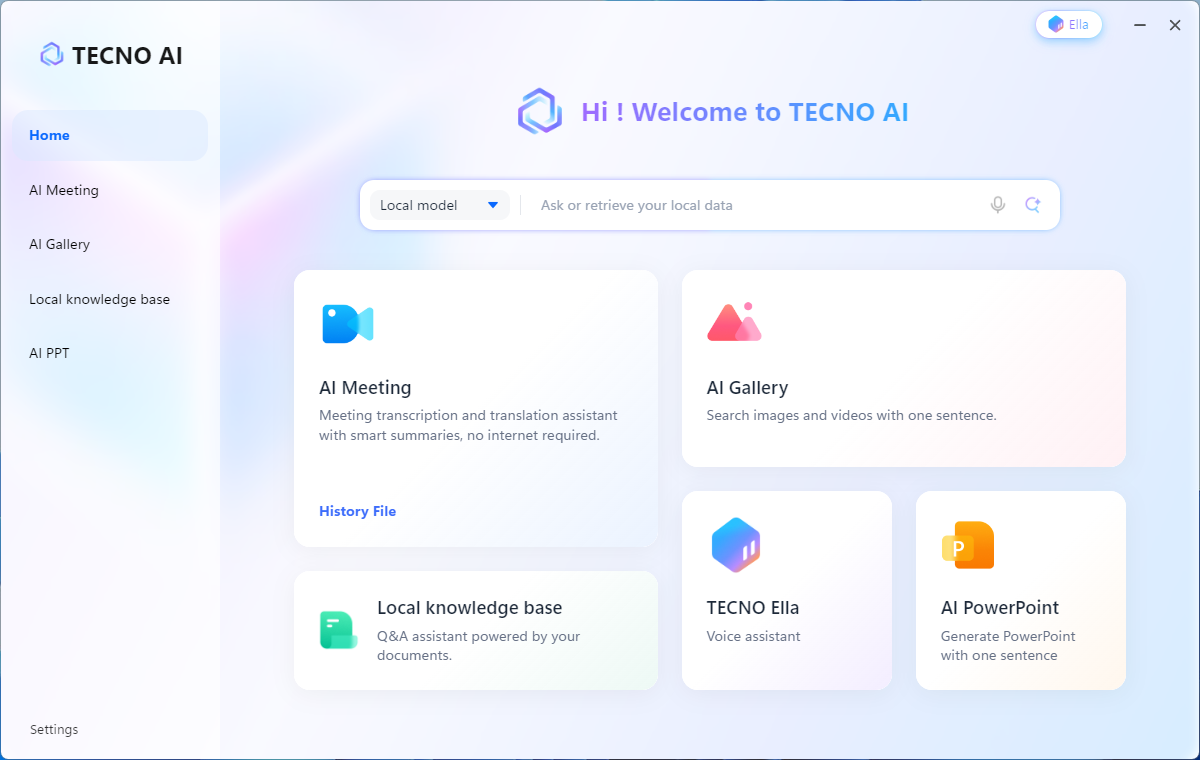
•Supports real-time voice transcription and bilingual translation.
•Supports system audio transcription and bilingual translation.
•Supports meetings of up to 1 hours; recordings are automatically saved when the time limit is reached.
•Allows pausing recordings and customizing meeting names during sessions.
•After stopping recording, audio and transcript files are automatically saved locally and can be viewed in the history.
•Supports audio file transcription and bilingual translation for files up to 60 minutes in AAC/FLAC/M4A/MP3/WAV AV formats.
•Supports video file transcription and bilingual translation for files up to 60 minutes in AVI/MKV/V/MOV/V/MP4/WMA/WMV formats.
•Allows custom task names during transcription.
•Supports up to 10 speakers.
•Allows custom speaker names.
•Extracts key meeting points.
•Generates meeting to-do lists (if applicable).
•Supports editing AI summaries; modifications in the source language are automatically translated if bilingual tasks are enabled.
•Supports copying AI summary content.
•Supports one-click transfer of meeting content to the knowledge base.
•Allows searching historical records by date.
•Supports deleting/batch deleting historical records.
•Supports editing file names.
•Supports viewing saved file locations.
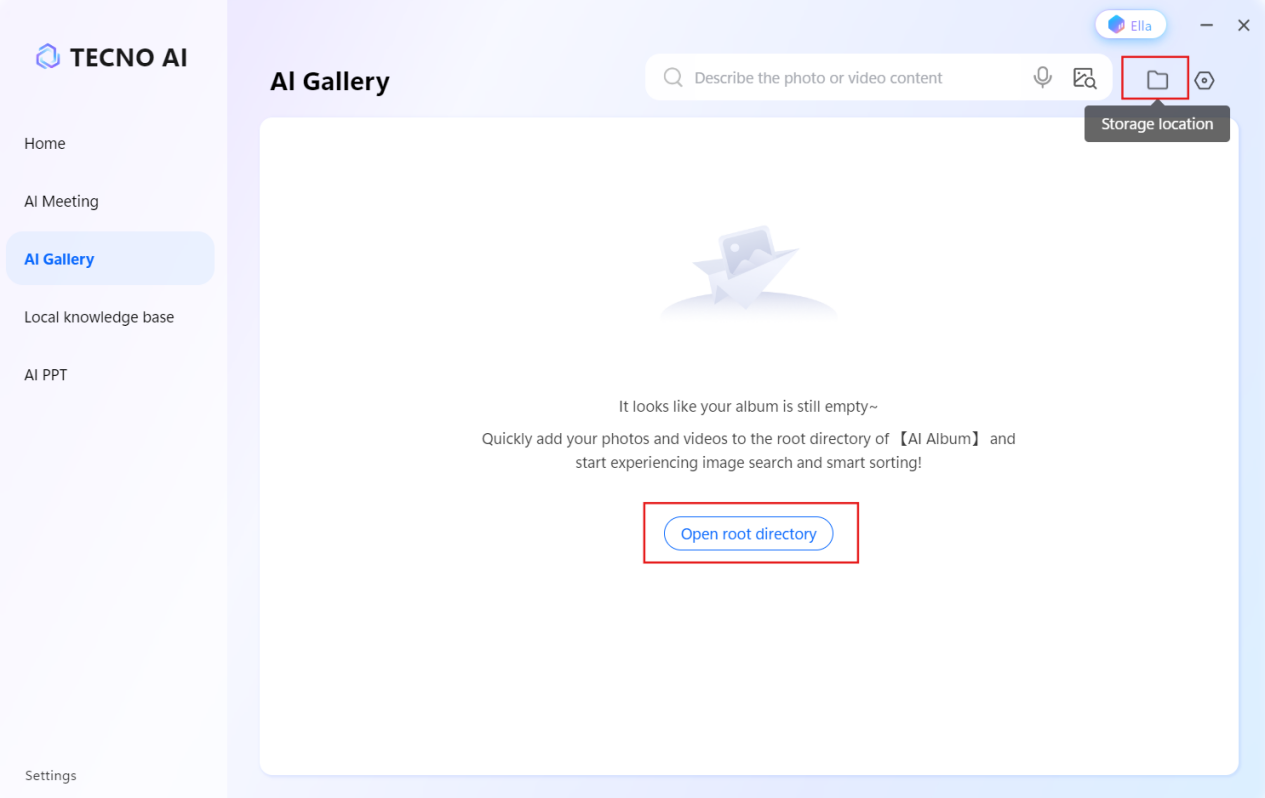
1. Click "Open Root Directory" or the "Open Storage Location" icon to access the storage path.
2. Place photos/videos to be imported into the root directory.
3. AI Album will process the data at ~10 images/second until all data is imported.
4. Search functionality can be used directly after import.
Tips: If the album data doesn’t update, switch to the homepage and reopen the album function.
•All: Collection of all photos and videos.
•Favorites:User-favorited photos and videos.
•Time:Organized by year/month/day.
•Characters:Organized by facial similarity; names can be edited.
•Location:Organized by geographic coordinates.
•Text Search:Describe the target photo/video with keywords (e.g., "panda eating bamboo"). Supports multi-dimensional searches with time and location (e.g., "photos taken in Shenzhen in 2023").
•Image Search:Upload an image to find similar ones. Supports JPG/JPEG/PNG formats (<5MB).
•Voice Search:Use the microphone in the search box; manually stop recording and edit transcribed content.
•Ella Voice Assistant:Wake Ella and say, "Find photos/videos of XXXX."
•TECNO Phone Integration:Connect TECNO phones via PC Manager, enable photo backup to AI Album, and use text/image search after transfer.
•Search Precision Adjustment:Click "Search Mode" to toggle between:
○Precision Mode:Higher accuracy, returns results matching all search conditions.
○Comprehensive Mode:Lower accuracy, returns results matching any search condition.
Tips: After transferring data to AI Gallery search results may be incomplete until the system finishes importing data. Wait 1-5 minutes before searching (~10 ilmages/second processing speed).
•File Upload Steps:
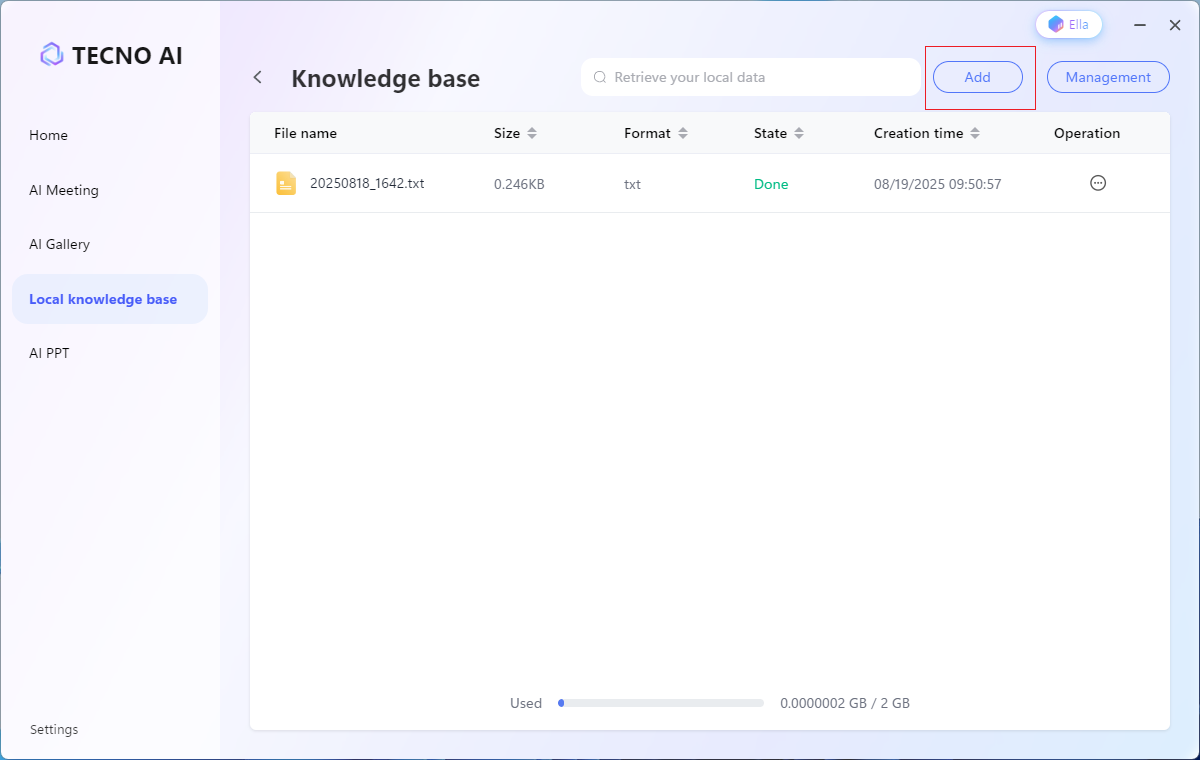
a. Click "Knowledge Base" to access file management.
b. Click "Add" to select files from your computer (single/batch upload).
c. Wait for files to upload successfully.
•Supports DOCX/DOC/PDF/TXT formats (DOCX/DOC/PDF ≤30MB, TXT ≤10MB).
•Supports single/batch file deletion.
•Supports fuzzy search by file name.
Tips:
•Changing the system time during upload may cause failures; restart the app if this occurs.
•Some models support cloud-based large models, which do not access knowledge base data, ensuring security.
1. Ask questions about successfully uploaded documents, focusing on document content.
○Supports stopping searches.
○Supports regenerating responses.
○Lists reference sources; documents can be opened for review.
•Supports Q&A for single/multiple attachments, focusing on attachment content.
Attachment Upload Steps:
a. Click "Upload Attachment."
b. Select files from your computer (single/multiple; DOCX/DOC/PDF/TXT formats, DOCX/DOC/PDF ≤30MB, TXT ≤10MB, max 10 files).
c. Enter your question and click "Send."
•Supports free Q&A with second-level responses.
•Supports saving data; click "Add to Knowledge Base" to store output locally.
Tips: Supports switching between local and cloud models; history is shared between models.
•Text Translation: Limited to 3000 characters.
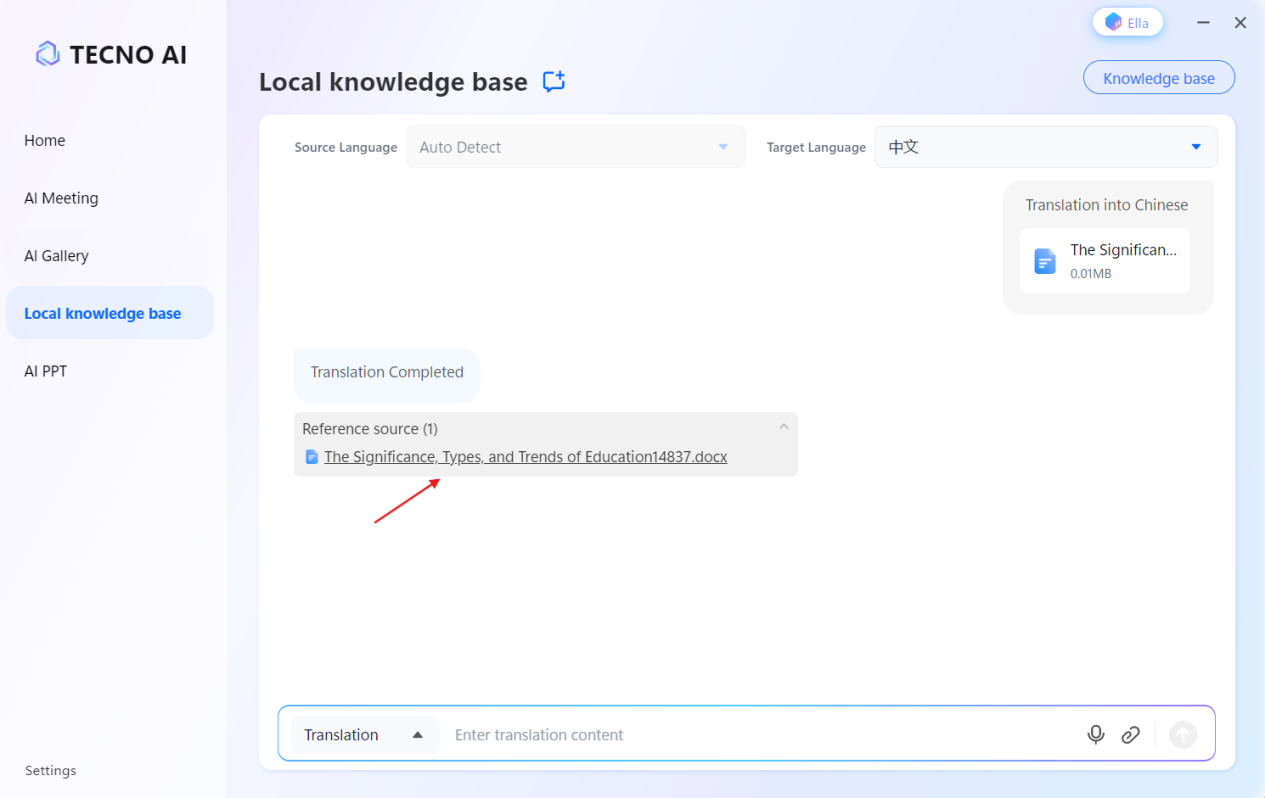
•Document Translation: Supports DOCX/TXT formats (DOCX ≤10MB, TXT ≤3MB, max 1 file). Preview translated documents directly after completion.
Document Translation Steps:a. Click "Upload Attachment."
b. Select the document to translate.
c. Click "Send" and wait for translation to finish.
•Click the Ella icon in the app’s top-right corner.
•Click the "TECNO Ella" card on the homepage.
•Press the physical F12 key on the keyboard.
•Enable "Auto-start Ella when opening the app" in settings.
1. If TECNO AI is closed, pressing the hotkey opens the app and Ella.
2. If TECNO AI is open but Ella is closed, pressing the hotkey opens Ella.
3. If both TECNO AI and Ella are open, pressing the hotkey wakes Ella.
TIPS:Waking up Ella in a noisy environment may fail. It is reconmended that you use a hotkey to wake her up.
•Open AI Homepage/Open AI Home
•Open AI meeting
•Open real-time transcription
•Open File Transcription/Open Offline Transcription
•Open history files
•Open AI gallery
•Search for photos with xx elements from a location on a certain date
•Open Knowledge Base/Open AI Q&A / Open GPT
•Search xxxx
•Online Search xxxx(Only S14)
•Open AIPPT
•Exit
If Tecno PC Manager is installed, Ella can also execute:•Open PC Manager /Open Manager
•Switch to power saving mode
•Switch to balance mode
•Switch to performance mode
•Open capture voice in room
•Open remove ambient voice
•Open clear voice
•Open Device Connectivity / Open Connectivity / Connect phone /Connect pad
•Open hardware information
•Open repair drivers
•Open optimize startup items
•Clean large files
•Open pop-up blocking
How to Use: Click AI PPT to open in a browser (due to regional restrictions, this feature currently requires a browser).
○Supports login with Google or other email accounts; login via email and password.
•Enter the PPT topic in the dialog box, set parameters (e.g., pages, audience, language, style), and upload reference documents for more professional content.
•Upload Word, PDF, TXT, Xmind, Freemind, or Markdown files, or paste Markdown/long text for generation.
•Generate by pasting Google Drive links or webpage URLs.
•Generate Outline
○Edit outline lines or click "Refresh" to regenerate after generation.
•Template Selection
○Edit outline lines or click "Refresh" to regenerate after generation.
•Download and Export
○After generation, download directly, share, or edit in the online editor.
•Online Editing
○Change templates, edit outlines, insert elements, and adjust settings in the editor.
○Click text to edit directly.
○AI Image helps quickly create PPT images.
•History List
○Click "History" to access and continue editing previous works.
•Supports adding one voiceprint.
•Supports enabling/disabling voiceprint recognition.
•Supports custom voiceprint names.
Steps to Add Voiceprint:a. Enable voiceprint recognition and click "Add Voiceprint."
b. Follow prompts to record voiceprint.
•Accurate Mode: Strictly matches all search conditions; most relevant results.
•Normal Mode: Intelligently expands keywords for a balance of richness and accuracy.
•Comprehensive Mode: Broadens range to include results matching any condition.
1. Open Hotwords and click "Add Hotword."
2. Enter keyword/phrase and save.
○ Because the antivirus software is performing real-time scanning or intercepting and analyzing the app's behaviors, files, or network activities in thebackground.
○ Solution: Add your App's main program and data directory as"exclusions" in all antivirus software.
Large language models (e.g., ChatGPT) have broad general knowledge but three limitations:
○Unaware of private/unpublished information (e.g., company financial reports, internal documents).
○Knowledge cutoff: Training data isn’t updated beyond a certain point.
○May "hallucinate" or generate plausible but incorrect answers. The local knowledge base addresses these by letting the AI "read" and use your exclusive data, making it more professional, accurate, and personalized.
○The hotkey is the standalone F12 key; check if Fn is enabled anddisable it before pressing F12.
○If the app is closed, pressing the hotkey starts the app first, therElla.
○ Hotwords aren't 100% guaranteed; real-time transcription prforitizes semantics over hotwords.
○Voiceprint recognition depends on recording quality; record prompt text clearly in a quiet environment.
○Go to System Settings > Privacy & Security > Microphone, and enable access for TECNO AI.
○After first-time placement, the system extracts features; wait ~1 minute before searching.
○Some photo/video formats may be unsupported (images: JPG/JPEG/PNG/BMP/WEBP; videos: MP4).
○Search keywords may be incorrect; refine descriptions if needed.













 All Models
 Compare Models
